
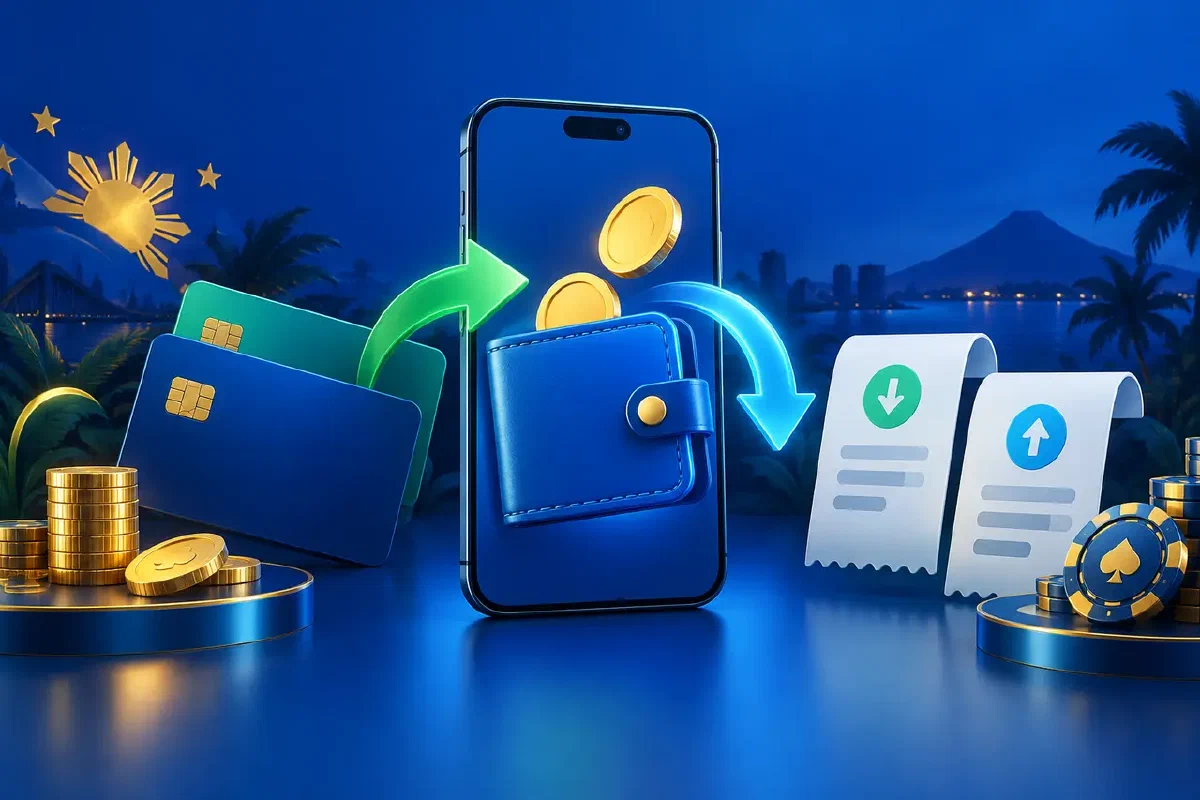
Use GCash on PlayTime for deposits and withdrawals from the cashier. Open the deposit or withdrawal section, choose GCash and follow the instructions on screen. GCash deposits credit within one to three minutes, and withdrawals typically complete in five to ten minutes.
The cash-out guide lists figures for app and web requests, which the reference table below collects in one place. Pick the route that matches your situation: a first deposit, a cash-out or a payment you are following.
PlayTime payment methods at a glance
| Method | Deposit | Withdrawal | Good to know |
|---|---|---|---|
| GCash | Yes, from ₱100, credited in 1 to 3 minutes | Yes, typically 5 to 10 minutes | ₱50 app and ₱200 web minimum |
| Maya | Yes | Yes, typically 5 to 10 minutes | Same flow as GCash |
| QR Ph | Yes | Deposit route | Instant crediting |
| Bank transfer | Yes | Yes, ₱5,000 to ₱5,000,000 | Suits larger payouts |
All payments run in Philippine pesos, and withdrawals return to the method you deposited with.
Deposit with GCash in four steps
- Sign in to PlayTime in the app or at ptgaming.ph.
- Open Deposit in the cashier and choose GCash.
- Enter an amount from ₱100 and confirm it in GCash.
- See the credit arrive within one to three minutes in your Deposit record.
Withdraw to GCash in four steps
- Complete KYC once in Security Center.
- Open Withdraw and choose GCash, the method you deposited with.
- Enter your amount, with a ₱50 minimum in the app and ₱200 on the web.
- Confirm the request and follow its status, which typically completes in 5 to 10 minutes.
Identify which payment you are trying to complete
A deposit moves money into your gaming account. A withdrawal sends an eligible balance back to your receiving account. Opening PlayTime itself happens through ptgaming.ph or the PlayTime app, and GCash is the payment method inside the cashier. Knowing the job first takes you to the right instructions.
For a deposit, you want the wallet to authorise the payment and the casino to credit it. For a withdrawal, you want the request status and the receiving wallet’s record. For access, use the PlayTime destination and your usual login method, and the cashier is ready right after sign-in.
That distinction helps when you search for help. A deposit tutorial covers money going in, a cash-out guide covers money coming back, and each one takes you to the right screen. Keep the direction of the money in your question.
Check the destination before opening the cashier
The PT Gaming brand’s main domain is ptgaming.ph. Our PlayTime legitimacy guide explains how that address appears in PAGCOR’s records. Sign in through the PlayTime route before entering payment information, and you are ready to pay.
An account page and a payment-provider confirmation do different jobs. The first shows the gaming transaction you are creating, and the second asks you to authorise a movement of money. Check the amount and recipient when the payment flow changes screens, and the transaction is confirmed in a few seconds.
If you already have an account, use it. One account keeps your whole transaction history together, so a deposit or withdrawal is easy to find later.
Confirm GCash separately for deposits and withdrawals
Open the deposit section and look at the listed methods: GCash, Maya, QR Ph and bank transfer. Read the instructions attached to GCash. Then open withdrawals to see GCash there as well. Doing this before you fund the account shows you the full picture.
The cashier shows the options for your account, and the live screen is always the reference. GCash, Maya, QR Ph and bank transfer are the methods PlayTime offers to Philippine players. Pay only through the cashier, which shows the exact recipient for each transaction.
If you prefer another method, read that method’s own conditions before selecting it. Each method has its own limits and processing: GCash and Maya withdrawals typically take five to ten minutes, while bank transfer suits larger payouts.
Read the amount screen before authorising a deposit
PlayTime’s deposit guide describes a straightforward sequence: sign in, open Deposit or Cashier, choose a method, enter the amount and follow the payment instructions. At the amount screen, check the minimum, maximum and any stated fee next to the number you entered. Deposits with GCash start from ₱100.
Choose the amount from your entertainment budget before you start. If the displayed minimum is above that budget, stop there and pick another method or a later time. A payment threshold is a condition of a method, and your budget decides the amount.
Check the selected method once more when you review the amount. In a mobile flow you move between screens, and a quick look at the current selection confirms it. Complete one transaction at a time, with the amount and destination in view.
Keep payment authorisation inside the displayed flow
Follow the instructions supplied by the cashier and payment provider for the transaction you started. Before authorising, match the amount and the recipient details to that transaction. Approve only the request you started; an unexpected request mid-deposit belongs to a different transaction.
Your GCash MPIN, your PlayTime login password and a one-time verification code are three separate credentials, and each stays with you. Support identifies a transaction through its reference and account context, so your credentials stay with you.
If someone offers replacement payment details in a private chat, go back to the official account flow. The right instructions are the ones displayed in your account for the transaction you started.
Finish a deposit by checking the credited record
After authorisation, return to PlayTime and check the balance and deposit history. Keep the wallet confirmation until you can match it with the credit. The actual transaction record tells you more than a closed payment window or an animation.
Compare the amount, the time and the reference where available. If the wallet shows a completed payment while PlayTime still shows pending, keep both records. They describe two parts of the same operation and give support a clear starting point.
Use the processing information shown for that transaction to decide the next step. The deposit guide advises waiting for a payment that has not yet appeared before repeating it. One payment to trace is simpler than two.
GCash and Maya withdrawal figures at a glance
PlayTime’s cash-out guide gives the following reference values for GCash and Maya. They describe how withdrawals are processed, and the cashier shows the live figures for each request.
| Item | GCash and Maya withdrawals |
|---|---|
| App minimum | ₱50 |
| Web minimum | ₱200 |
| Standard amount | Below ₱50,000 |
| Standard processing | Typically 5 to 10 minutes |
| Larger-request review | 24 hours to 2 or 3 banking days |
| Maximum per GCash request | Up to ₱500,000 |
| Withdrawal fee | ₱0, covered by PlayTime |
Processing starts once verification and turnover are cleared. The table describes a request that is ready to go, so the five to ten minutes count from that point. If the live account shows different terms, those current details apply.
Prepare the account before a first cash-out
The official account FAQ places identity verification in Security Center. It asks for your legal first and last name, date of birth and an identity-document photograph. The registration guide covers that account setup in more detail, including how a submission turns into an accepted verification.
Check the status in your account to see when verification is complete. Uploading a document is your action, and acceptance is the platform’s result. Once it shows as accepted, withdrawals are open.
Prepare the receiving account at the same time. The cash-out guide asks for the wallet name to match the gaming account’s legal name, so use your own GCash account. If the details differ, update the account information through the official process, and the match is in place for good.
Distinguish the balance from the withdrawable amount
The balance on screen and the withdrawable amount can differ. Look for the balance identified as available to withdraw, and read any verification or wagering message next to it. That tells you the amount a withdrawal accepts at that moment.
The guide describes a one-times deposit turnover condition, and bonuses carry their own wagering. These are two separate requirements, so a welcome offer follows its own calculation on the offer page.
If a condition appears that you did not expect, ask support which balance and transaction it concerns. Keep wagering within your own limit, and the condition becomes a simple step in the process.
Submit one clear withdrawal request
Open the Withdraw screen, choose a receiving method and check the destination details. Enter an amount within the displayed range and up to the eligible balance. Review the result before confirming, then keep the request reference and initial status.
This gives you a defined operation to follow. Compare the request in PlayTime with the receipt in your wallet, and the whole payout is traceable from start to finish. If an error appears, note whether it came before submission or after a request was created.
Send one request at a time. Check the existing record and the current instructions while the first one is processing. If a request needs correction or cancellation, its status tells you which option applies.
Interpret the processing time in context
The standard timeframe is five to ten minutes for GCash and Maya, with your account conditions attached. A request awaiting verification, a pending request and a completed request are three different states. Read the status beside the reference to see where yours is.
For a larger cash-out, the review information shown for that request tells you the timing: 24 hours up to 2 to 3 banking days for requests of ₱50,000 or more. One request for the full amount follows that single path and is the simplest way to cash out a large balance.
Note when you submitted the request and when its status changed. If the displayed period has passed, those times help support find the request. Keep the chronology factual: request submitted, status seen, receiving wallet checked. A transfer is complete once the records show it.
Resolve a successful wallet payment with a missing credit
Start with the wallet record. Check that it shows the amount you intended and that its status is completed. Then check the PlayTime deposit history for the same operation. Keep any reference that links the two.
If the wallet debit is there and the casino credit is not, contact official support with a short note about that mismatch. Include the transaction date, amount and reference, plus the status shown in each place. That is a clear payment reconciliation request.
The existing records identify the transaction that needs attention, so one deposit is enough to follow. Keep unrelated gameplay and transfers out of the note, which lets support focus on the missing credit.
Separate a declined payment from an interrupted screen
A visible decline gives you a result to look at. Check the stated reason, the selected amount and the payment-provider record before trying again. An interrupted screen is different: the connection may have dropped before or after authorisation, so the records show the financial result, and the browser alone does not.
If the payment provider has no completed transaction and the cashier has no pending operation, follow the instructions for retrying. If either record shows an existing payment, settle that state first. That way each loading error stays a single transfer.
Keep the actual message. A message about an amount, an account or an authorisation step is specific, and support can investigate that exact condition.
Correct details on the existing request
If you notice an incorrect amount or wallet number before confirming, go back to the field and correct it, then review the final summary again. If a transaction has already been submitted, check its status before attempting further changes.
Contact official support about the existing request when the interface does not explain the next step. Give the reference and say which detail looks wrong. Support will tell you what can be done for that request.
For a receiving-name mismatch, update the identity information on your account and keep using your own wallet. For a mistyped number, keep the submitted record and follow the platform’s response. Each case has its own fix, so naming the exact problem gets the exact answer.
Check a promotion before paying for it
Before a deposit tied to an offer, open the promotion and read its qualifying method, amount and activation instructions. A GCash option in the cashier is your payment route, and the offer page confirms which deposits qualify for the reward.
Keep the offer’s claim step next to the payment authorisation. Rewards are credited automatically after registration and your deposit, and the offer’s own sequence shows each stage. The offer status tells you when everything has been recorded.
If the reward is not showing, compare the claim status with the payment status. One can be complete while the other is still moving, and both appear in your records. Use the offer information and the payment reference to see which requirement is left.
Keep a usable payment record on mobile
When you switch between the casino and a wallet app, keep the original payment context open until the result is clear. The PlayTime app guide covers choosing the intended app route and keeping the same account across devices. Tracing a transfer starts with the records, and your installation stays as it is.
Record the amount, date, time, reference and displayed status somewhere you can find it. In a screenshot, include the relevant message and transaction details and crop out unneeded identity information. A status with its reference is easy to match later.
Keep copies private and share the necessary details through the official support process. One transaction needs only its own details.
Find the right history for the question
The official FAQ describes separate Deposit, Withdrawal, Game and Reward transaction views, with a date selector. Choose the view that records the operation you are checking. A game result, a deposit receipt and a reward entry each live in their own tab.
Check the selected date range when an expected entry is not visible. An empty view means no entry matches the current selection. Confirm the account, the transaction type and the period, and the entry usually appears.
For a session with a deposit, several game rounds and a reward, describe the records one by one. Start with the incoming payment, then the later operation you are asking about. Separate descriptions make it easy to tell a missing credit from a gameplay or promotional question.
If you change devices while checking, use the same account and repeat the history selection. A different screen layout shows the same records. The transaction reference links the two views.
Compare a fee with the actual transaction amounts
The withdrawal table states that PlayTime covers the transfer fee, so you receive the full amount you request. Any fee on a deposit appears on the transaction you are authorising, and the payment provider shows its own disclosure.
If the received amount differs from the requested amount, compare the two transaction records. Note the withdrawal amount, any separately displayed charge and the matching wallet receipt. An overall wallet balance includes other activity, so the individual receipt is the clearest record.
Ask support to explain a difference against the relevant reference. A request marked complete with a wallet receipt showing a different credit calls for an amount comparison. A request still pending with no wallet receipt calls for a status check. Each case has its own quick answer.
Payment instructions come from your account only. If a message asks for a separate payment to release funds, return to the account instructions and ask official support to confirm what applies.
Distinguish a payment credential from account access
PlayTime’s official FAQ treats a login password and a payment password as two separate account settings. The payment password is set up by entering six digits twice. That setting is part of your PlayTime account, and your GCash MPIN stays with you.
The FAQ places phone verification and payment-password setup before adding fund-account details. If the account asks you to complete one of these, go to that named setting. Our registration page keeps the setup instructions together so you can return to the cashier once the account shows the right state.
For a changed phone number, use the account’s phone-change or recovery process. Use your own number for payment codes, since a code belongs to a specific verification action in your own account.
When you ask for help, name the screen and the setting. “The payment-password setting is incomplete” is a precise account question and gets a precise answer. A transfer is its own step once the account prerequisites are done.
Give support a specific transaction question
A useful request names the direction of the payment, the method, the amount and what you observed. For example, say that the wallet records a completed deposit while the PlayTime entry shows pending. Attach the reference when support asks for it.
For a withdrawal, say when it was submitted and what the account shows now. Mention whether the receiving wallet shows a matching credit. Keep any reply’s wording and time so the next conversation continues from the same facts.
Ask what action is needed for that request, if any, and where the result will appear. A concrete question gets a concrete answer. Keep passwords, MPINs and verification codes out of the exchange; the payment reference is the identifier that matters.
Decide the next action from the record you have
Before closing the payment screens, note the current state. An unsubmitted payment can be reviewed. A pending transaction can be followed. A completed debit without a matching credit goes to reconciliation. A request that was declined shows its condition, which you address before the next attempt.
| Your situation | Useful next step |
|---|---|
| GCash needed for a deposit | Open Deposit in the cashier and choose GCash |
| Wallet debit, casino credit not yet shown | Compare both records and keep the reference |
| Withdrawal awaiting verification | Check the verification status in Security Center |
| Receiving details differ | Update the specific account detail |
| Request over the usual 10 minutes | Ask official support about the existing request |
Choose the action that fits the existing condition. A payment that is already recorded is resolved through its own record. Once the operation is reconciled, return to your original spending limit and decide whether to keep playing.
PlayTime GCash questions
These answers cover the points players ask about most: the minimum withdrawal, depositing and cashing out with the same method, a credit that takes a moment to arrive, the welcome bonus and larger requests. Each one gives the figure and the place in your account where you can see it for yourself.
What is the minimum GCash withdrawal?
GCash and Maya withdrawals start at ₱50 in the app and ₱200 on the web version. Bank transfer withdrawals start at ₱5,000.
Can I withdraw to GCash after depositing with it?
Yes. Withdrawals return to the method you deposited with, so a GCash deposit leads to a GCash withdrawal. Complete KYC once, and make sure the name on your GCash account matches your registration.
What if GCash shows a completed deposit but my balance has not updated?
Deposits normally credit within one to three minutes. If the credit takes longer, compare the GCash reference and time with the Deposit tab in Transactions, then send both to support. Support locates the payment from the reference, so your MPIN and one-time code stay with you.
Does a GCash deposit qualify for the welcome bonus?
A first deposit starts the welcome rewards, which are credited automatically after registration and deposit. The offer page lists the qualifying method and amount for each reward.
How are larger withdrawals handled?
Requests of ₱50,000 or more go through an extra review of 24 hours up to 2 to 3 banking days. One request for the full amount follows that single path, and the request status shows its progress.